
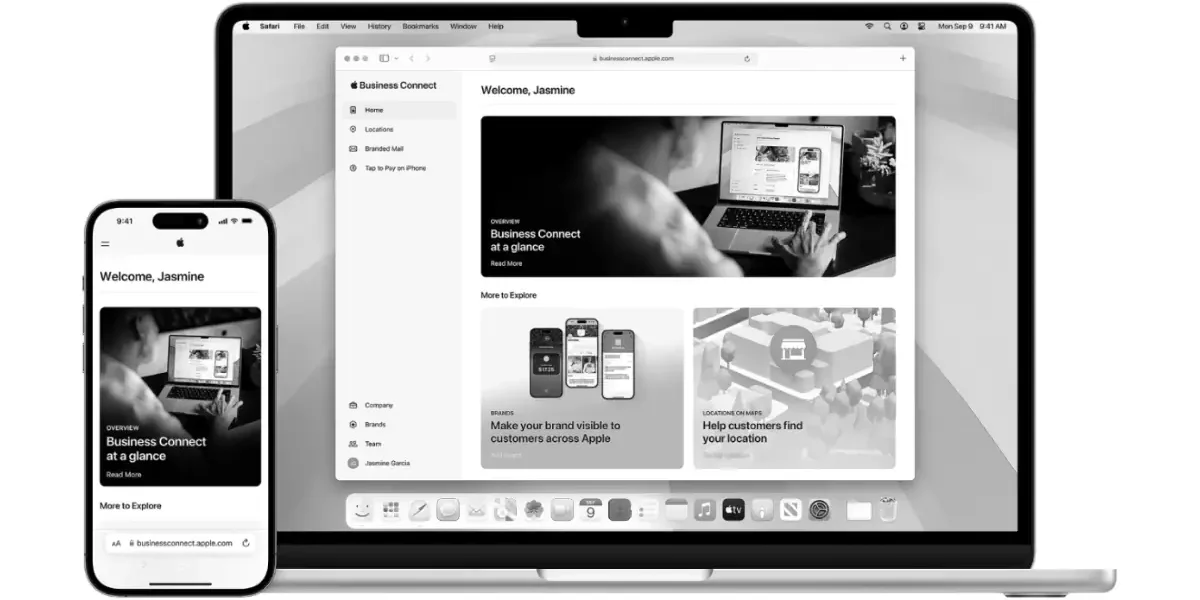
If your customers carry an iPhone, your business already has a front door in their pocket. The question is whether that door looks trustworthy, up-to-date, and unmistakably yours.
A solid Apple Business Connect setup helps you control how your business appears across Apple apps like Maps, Siri, Wallet, Mail, and Phone. Done right, it supports local SEO, improves branding, and reduces “wrong number” calls and missed visits.
Below is a practical, 2026-ready checklist built for busy owners and marketing teams.
What Apple Business Connect does for you in 2026 (and why it matters)
Apple Business Connect (ABC) is Apple’s free portal for managing your Place Card and brand presence across Apple’s ecosystem. In plain terms, it’s where you claim your listing and polish what customers see before they call, visit, or buy.
As of March 2026, ABC commonly supports features like:
- Place Card customization in Apple Maps (photos, logo, hours, categories, actions)
- Showcases (promotions and highlights, availability can vary by region and business type)
- Insights and analytics (how people find and engage with your listing)
- Branded Mail (your name and logo appear in Apple Mail for supported emails)
- Business Caller ID (your name and logo can show on inbound calls, depending on availability)
- Branded Tap to Pay presence (your brand can appear during Tap to Pay on iPhone experiences, where available)
If Google is the busy highway, Apple Maps is the well-lit main street. You want both, because customers don’t search the same way. That’s why ABC belongs in your local marketing stack right alongside your Google Business Profile and your website.
For Apple’s official documentation, keep these two pages bookmarked: the Apple Business Connect Support Guides & FAQs and the Apple Business Connect User Guide.
Prep work that saves hours later (gather this first)
ABC setup goes fastest when you treat it like opening day. You wouldn’t unlock the doors without the right signage, hours, and phone line. Same idea here.
Use this quick table to separate “must-have” from “nice-to-have” fields.
| Information | Required for most listings | Strongly recommended |
|---|---|---|
| Business name | Yes | Keep it consistent everywhere |
| Address or service area | Yes | Add suite numbers, landmarks (where allowed) |
| Phone number | Yes | Use a tracked line only if it’s permanent |
| Website | Often | Link to the most relevant location page |
| Business category | Yes | Choose the closest match, not the broadest |
| Hours | Yes | Add holiday hours early |
| Verification details | Yes | Some businesses may need a D-U-N-S number or legal info |
| Logo and photos | No | Add them before you “set and forget” the profile |
| Actions (order, book, reserve) | No | Adds friction-free conversions |
| Promotions (Showcases) | No | Great for seasonal offers |
Consistency beats cleverness. Match your name, address, and phone across Apple, Google, and your site, or you’ll spend months chasing small ranking drops.
If your team needs a refresher on how search signals connect, skim search engine optimization basics before you start changing listings.
Apple Business Connect setup checklist (with time estimates)

Use the steps below in order. The time ranges assume you have your info ready.
- Create or choose a dedicated Apple ID (5 minutes)
Use a business-owned login, not a personal one. Then you won’t lose access when staff changes. - Sign in to Apple Business Connect and start a location claim (10 to 20 minutes)
Search for your business. If it exists, claim it. If not, add it. Multi-location brands should plan extra time. - Complete verification (15 minutes to a few days)
Apple may confirm ownership via phone, email, or business documentation. Some businesses will need additional legal details (availability and methods vary by country and category). - Set your core Place Card details (15 to 25 minutes)
Add your primary phone, website, address or service area, categories, hours, and short description (if prompted). Keep formatting consistent with Google and your site. - Add photos and a logo that match your branding (20 to 40 minutes)
Upload a clean logo and a small set of strong images (storefront, interior, products, team). Save the “busy collage” for social posts. - Connect customer actions (10 to 30 minutes)
If you take bookings, reservations, or orders, connect the supported action links. This is where “browsing” turns into “buying.” - Set up team access and roles (5 to 10 minutes)
Give marketing control to marketing, and limit admin rights. Clean permissions are quiet insurance. - Turn on brand features when eligible (10 to 30 minutes)
Look for options like Branded Mail, Business Caller ID, and Tap to Pay branding. These features don’t roll out everywhere at once, so check availability inside your dashboard and Apple’s guides. - Publish, then check the live result on an iPhone (10 minutes)
Search your business in Apple Maps and via Siri. Confirm the pin location, hours, phone, and photos. - Set a monthly reminder to review insights (10 minutes monthly)
Watch searches, taps, calls, and direction requests. Small trends often hint at bigger SEO and marketing opportunities.
Some ABC features (like Showcases or caller branding) can be region-dependent. When in doubt, confirm in the Apple Business Connect Support Guides & FAQs instead of guessing.
For a non-Apple perspective on how listings are evolving, see Apple Business Connect in 2026: What brands need to know.
Image best practices (without obsessing over pixel counts)

Photos do more than decorate your listing. They help people decide if you feel “real.” Aim for quality and clarity, then stay consistent.
Here’s a simple mix that works for most local categories:
- Logo: Use a simple mark that reads well at small sizes. Avoid tiny text and thin lines.
- Storefront: Shoot straight-on in daylight, with the entrance visible.
- Inside view: Help first-timers feel oriented (counter, waiting area, main room).
- Product or service: One clean hero shot beats ten cluttered ones.
- Team: A friendly, professional photo builds trust fast (with permission).
If your photos feel dated, your brand feels dated. That same rule applies to your Website design, because customers compare everything in seconds.
Keep Apple, Google, and your website consistent (what to prioritize)
Apple Business Connect is not a replacement for your Apple Maps presence or your Google Business Profile. Think of it like three instruments in the same band. If one is out of tune, the whole song sounds off.
Here’s the quick comparison to guide priorities:
| Platform | What it’s best for | What to keep consistent |
|---|---|---|
| Apple Business Connect | Managing your Apple presence and brand features | NAP details, categories, hours, logo, photos |
| Apple Maps listing (customer-facing) | Getting found by iPhone users in Maps and Siri | Pin location, categories, hours, website link |
| Google Business Profile | High-intent discovery on Google Search and Maps | Services, reviews, posts, Q&A, NAP details |
Also, don’t let your listings point to a stale website. Strong local SEO depends on a site that loads fast, reads clearly on mobile, and matches the promise of your listings. If you’re rebuilding or cleaning things up, start with WordPress website design and keep it healthy with routine website maintenance.
When you want better visibility across all platforms, align your listings with what people actually search. A practical starting point is this guide on local SEO keyword research.
Conclusion
Your listing is often the first handshake, not your homepage. In 2026, Apple Business Connect gives local businesses a real way to control that moment with stronger branding, clearer info, and more confident customer actions.
Block 60 minutes this week, run the checklist, then set a monthly review. Your future self will thank you when calls increase and “Are you open?” questions drop.