
Someone’s thumb hovers over the Call button, and your google business profile photos decide what happens next. Not your slogan. Not your “About” text. The pictures.
In 2026, most local searches happen fast and on a small screen. People want proof you’re real, easy to find, and worth their time. The right photo set does that quietly, like a well-lit open sign on a rainy night.
Below is a photo strategy built for calls, with shot lists, sizing rules, a customer photo script, a monthly checklist, and quick fixes when Google misbehaves.
Start with wayfinding photos that remove friction (and earn the call)

Before people call, they picture the visit. If your photos don’t answer “Can I find you?”, they’ll tap the next listing.
Build your “wayfinding set” first:
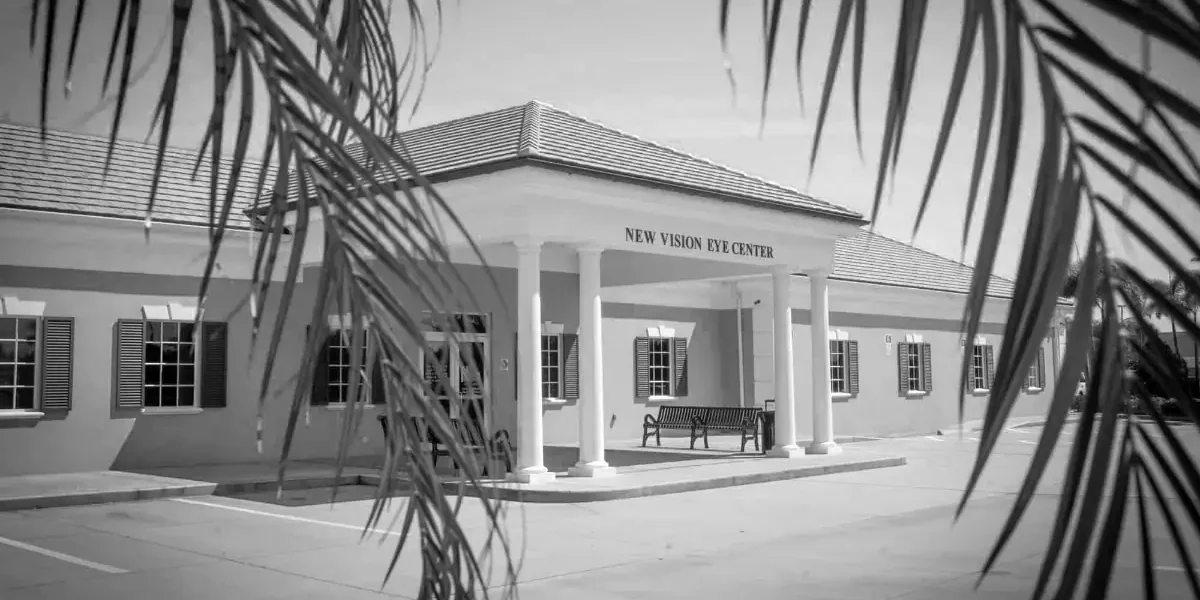
- Exterior 1 (main): straight-on storefront with signage readable from the street.
- Exterior 2 (arrival): parking lot, driveway, or nearest landmark (corner, plaza sign).
- Entrance close-up: door, suite number, and any entry keypad or check-in window.
- Interior 1 (orientation): what customers see when they step in (front desk, waiting area).
- Interior 2 (confidence): clean, bright space that signals you’re organized.
- If you’re by appointment: photo of the check-in area, bell, or where to stand.
Service-area businesses can still do this. Show the branded vehicle, uniform, and tools laid out neatly, then add one photo that makes your service obvious (technician at work, finished result).
Google still crops photos differently across surfaces in 2026, so keep faces, logos, and signs inside a central “safe zone” (think the middle 80 to 90 percent). Also skip text overlays and watermarks because they often look messy when cropped.
Use Google’s current guidance for photo quality and formatting when you upload (file size, formats, and category rules). Keep that page bookmarked: Google’s tips for business-specific photos.
Here’s a simple sizing reference that matches how photos commonly display in Search and Maps:
| Asset | Recommended size | Aspect ratio | Notes |
|---|---|---|---|
| Cover | 1024 × 576 | 16:9 | Keep key details centered |
| Logo/profile | 720 × 720 | 1:1 | Use a clean, flat logo |
| Most business photos | 1200 × 900 | 4:3 | Best fit for carousels |
| Videos | 1280 × 720 | Landscape | Up to 30 seconds, 75 MB |
If your location photos feel “hard to read,” your calls will too. Clarity comes first, always.
Add trust photos that make strangers feel safe calling you
Wayfinding gets you considered. Trust gets you the call.
The goal is simple: show that real people do real work, in a real place, with real standards. That’s why the strongest google business profile photos look like a behind-the-scenes peek, not an ad.
Prioritize these trust builders:
Team and action shots
Show faces, but also show hands at work. A hygienist preparing a room, a mechanic doing an inspection, a lawyer in a consult, a chef plating, a contractor measuring.
Service-in-progress photos
These reduce uncertainty. People call when they can imagine the process. Keep it clean, well-lit, and honest. No fake “before” mess.
Proof photos
Licenses on the wall, awards in the lobby, certifications on a clipboard, branded trucks lined up, safety gear in use. These act like quiet receipts.
Consistency with your brand
Photo style is part of branding, even when it’s casual. Colors, uniforms, signage, and tone should match your website and ads. If your listing feels polished but your site feels dated, trust wobbles. This is where good WordPress website design and steady website maintenance support the same story your profile photos are telling. Strong marketing is often just consistency, repeated.
Here’s a quick “do and don’t” guide you can hand to staff:
| Do | Don’t |
|---|---|
| Use natural light or soft indoor light | Use heavy filters that change colors |
| Photograph real staff doing real tasks | Use stock photos or fake setups |
| Keep backgrounds tidy | Show clutter, hazards, or messy counters |
| Capture clear signage and entry points | Crop out the door, suite, or landmark |
| Use sharp, high-resolution images | Upload blurry screenshots from video |
If a photo wouldn’t make you comfortable walking in, don’t upload it.
If your visuals feel off-brand, tighten the basics first, like uniforms, signage, and logo usage. A clean identity system makes every new photo easier. If you need a reset, start with logo design services so your photos and profile look like they belong together.
Run a 30-minute monthly refresh that keeps calls coming
Fresh photos don’t just look better. They signal you’re open, active, and paying attention. That matters for local SEO because engagement often follows freshness.
Set a monthly rhythm that’s so easy it actually happens. Aim for five new uploads each month. That’s it.
Monthly photo checklist (repeat every 30 days)
- Replace one exterior or entrance photo if seasons or signage changed.
- Add one team or action shot (different person each month).
- Add one “proof” photo (award, training, community event, clean work truck).
- Add one service-in-progress photo (new job, new project, new angle).
- Add one “finished result” photo (clean countertop, repaired unit, happy takeaway).
Then do a quick cleanup. If an old photo is blurry, dim, or no longer accurate, remove it. Think of this like photo website maintenance, not a one-time task.
Customer photo request script (simple, polite, policy-safe)
Use this after a job well done, at pickup, or in a follow-up text.
Hi [Name], thanks again for choosing us. If you took any photos of the final result, could you reply with 1 or 2 favorites? We may feature them on our Google Business Profile (first name only). If any photo includes people, we’ll ask before posting.
A few guardrails keep you out of trouble: don’t edit images to change reality, don’t add promotional text on the image, and don’t pressure customers. Also get written permission if a customer’s face is visible.
When photos and messaging work together, calls rise. If you’re also working on search visibility, pair this photo system with a steady SEO plan, or a dedicated local SEO service so your listing shows up where the calls start.
Troubleshooting: photos not showing, duplicates, low quality, and spam
Sometimes you upload the perfect image and it disappears. Other times, you spot duplicate photos or weird competitor junk.
If photos aren’t showing:
First, confirm they meet file rules (JPG/PNG, 10 KB to 5 MB). Next, wait a full day because processing lag happens. If it still doesn’t appear, re-export the image (new file name), then upload again. Also check how it looks on mobile because cropping can hide details.
If Google shows duplicates:
Delete extra copies from your own uploads, then re-order by adding a newer “hero” exterior shot. Duplicates often happen when teams upload from different phones without a shared folder.
If photos look low-quality in Search:
Avoid uploading from messaging apps that compress images. Send originals to a shared album, then upload from desktop. Keep your main subject centered and well-lit.
If competitors spam your profile with unrelated photos:
Report the photo inside your Business Profile, and document the issue with screenshots and dates. Keep the report factual and policy-based. Google’s own photo guidance is the best reference point when you flag problems: Google’s tips for business-specific photos.
For a broader view of what tends to push actions like calls and direction requests, this industry summary is useful: GBP conversion factors research.
Conclusion
The best google business profile photos do two jobs at once: they guide people to you, and they calm the small doubts that stop calls. Start with wayfinding, add trust, then keep the set fresh with a monthly rhythm.
Treat your photo strategy like you treat your signage and your Website design: it’s part of how customers decide you’re the safe choice. Update it, clean it up, and let it show the real work you’re proud of.